इसे आज़माएँ!
अपनी purge sheet में custom text जोड़ें ताकि labeling और archiving आसान हो जाए। तारीख, printer name, या छोटी note डालें ताकि आपके maintenance records व्यवस्थित रहें और पुरानी test sheets पहचानना आसान हो।
हर पेज पर हाथ से निशान लगाने की ज़रूरत नहीं है। बस पहले से एक labeled sheet बना लें, जिसमें “Lobby printer – Jan 15”, “Reception printer before cleaning”, “Upstairs printer”, या “Jennifer’s printer” जैसी notes हों।
प्रभावित स्याही के अनुसार purge शीट चुनें
समझ नहीं आ रहा कि पहले कौन-सी प्रिंट करें? मार्गदर्शित Purge Print पेज से शुरू करें, फिर उसी रंग की शीट पर वापस आएँ।
प्रिंटर में इस्तेमाल हुए शब्दों को देखें
- Epson: Nozzle Check → Print Head Cleaning → Power Cleaning
- Canon: Nozzle Check → Cleaning → Deep Cleaning → Ink Flush / Replace Ink in Print Head
- Brother: Print Quality Check → Print Head Cleaning → Special / Strong Cleaning
- HP: Print Quality Diagnostic Page → Clean Printheads → Align Printheads
रुकें और फिर से जाँचें अगर प्रिंटर लंबा इंतज़ार माँगे, प्रिंटहेड / मेंटेनेंस एरर दिखाए, या heavy-clean स्टेप के बाद nozzle pattern बिल्कुल न बदले।
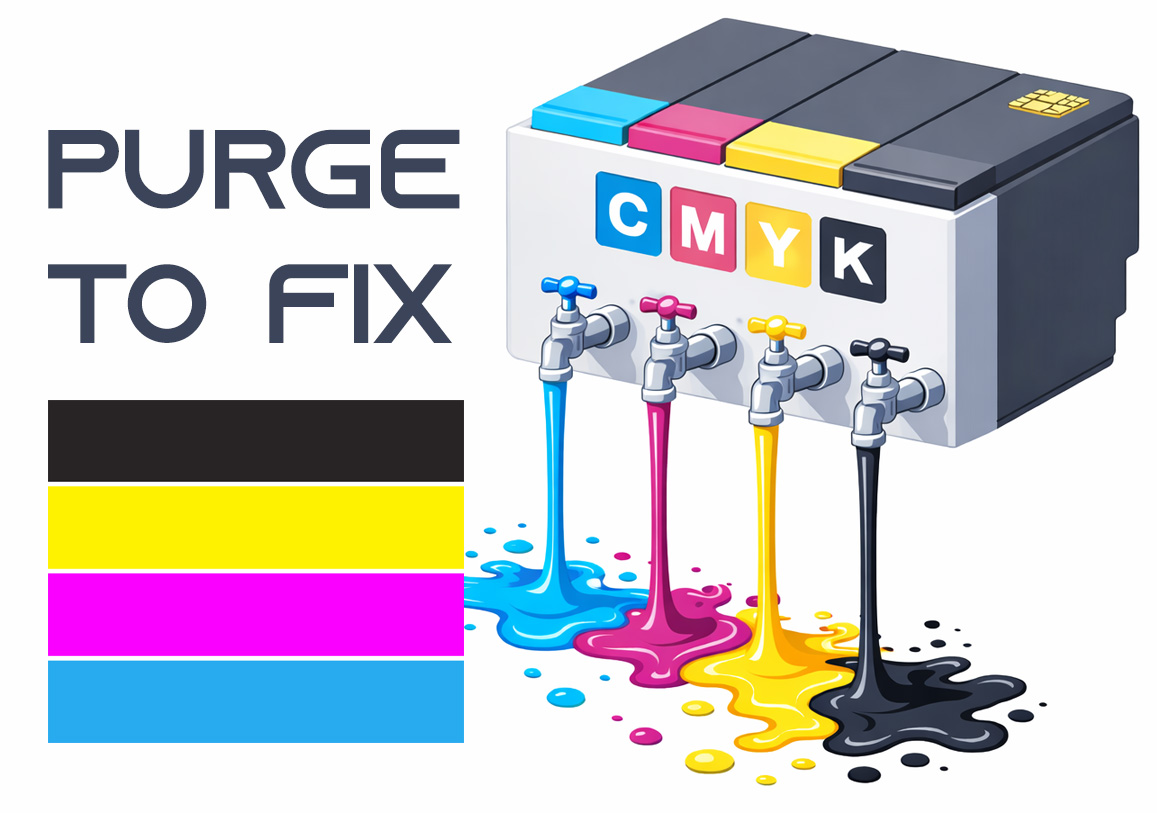
Purge to Fix
Printing a purge sheet can restore print quality and eliminate the need for a professional service visit. This DIY maintenance routine is highly effective for clearing clogged nozzles and dried ink buildup that causes horizontal banding or missing colors. While not a 100% fix for mechanical failure, it is the best first step for ink flow issues.